Cashless Payments Built Into Every Charger
All Alpine Energy chargers use the NAYAX cashless payment system, which lets you pay with any major credit or debit card, or a mobile wallet — directly at the charger, with no account or app required.
Follow the eight steps below for every session. If something doesn't go to plan, refer to our troubleshooting section or contact our support team.
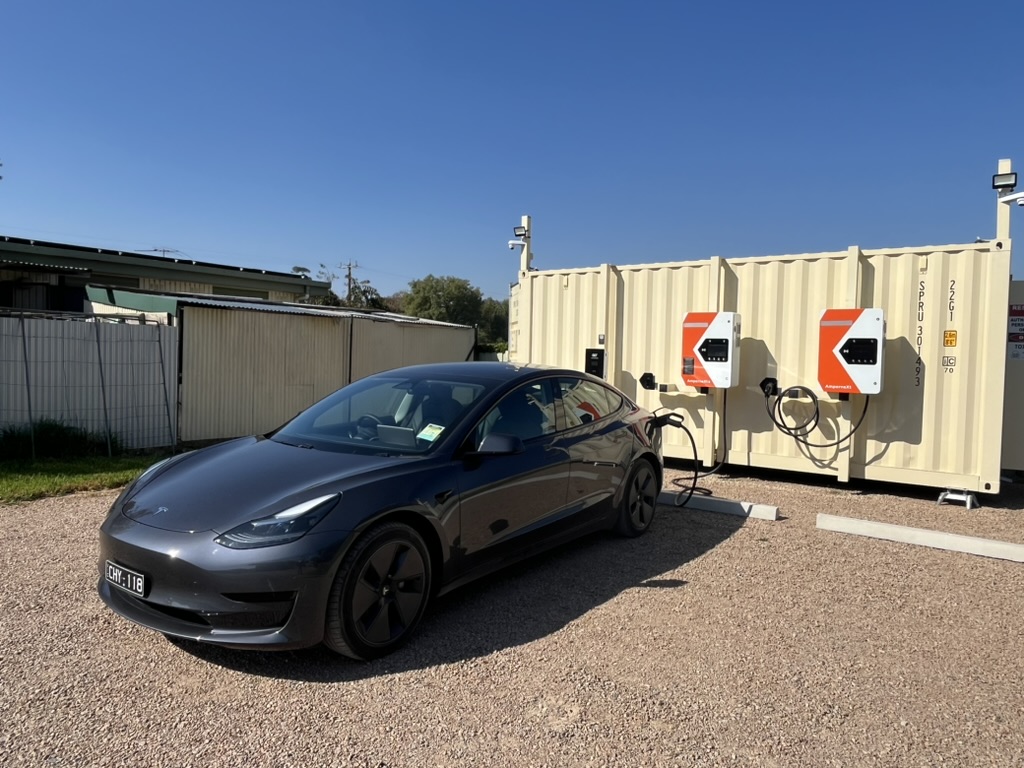
Powered by NAYAX
Tap your card or mobile device to get started instantly.
8 Steps to a Successful Charge
Follow these steps in order every time you use an Alpine Energy charger.
01Check Availability
Ensure the station is ready and your desired connector type is shown as available on the NAYAX display.
02Connect Cable
Firmly plug the charging cable into your vehicle's charging port. Ensure it clicks securely into place.
03Start Session
Select your connector on the NAYAX screen and press the “Start Now” button to initiate the session.
04Payment
Present your credit/debit card or mobile wallet to the reader. Visa, Mastercard, Apple Pay and Google Pay are accepted.
05Charging in Progress
Your session is now active. The charger screen displays indicative data only — your actual usage will be on your receipt.
06Select to Stop
When ready to finish, select your connector on the NAYAX screen and press the “Stop Charging” button.
07Finalise Payment
Present the same card or device used to start the session. This finalises the session and confirms billing.
08E-Receipt
Disconnect the cable and return it to the holster. Scan the QR code on the NAYAX screen to receive your receipt by email.
Things to Keep in Mind
Credit Card Only
These chargers do not accept cash. Payment must be made by credit or debit card, Apple Pay, or Google Pay — directly at the machine.
Screen is for Indication Only
The charger screen shows an approximation. Your actual energy usage and billing details will be available on your e-receipt after the session ends.
If Charging Fails to Start
Try the relevant steps below based on your charger type before calling our support line.
Fast Charging
DC Charging
- 1
Unplug the cable from your vehicle completely.
- 2
Reconnect firmly until you hear or feel a click.
- 3
Restart the session from Step 3 on the NAYAX screen.
Standard Charging
AC Charging
- 1
Ensure the cable is firmly clicked into the vehicle port.
- 2
If the session does not authorise, tap your card again.
- 3
If issues persist, check the NAYAX screen for station status.
- 4
Contact Alpine Energy support if the problem continues.
Emergency Stop is Located on the Right Side of the Unit
Still Need Help?
Our support team is available to assist. Call us directly or send a message and we'll get back to you within 1–2 business days.